
A few people have been having difficulties with getting NPCScan to work, so I decided to write up a visual guide (because pictures say 1000 words) to try and help hunters get it working. In addition to that, I’ve also included some info for another great alternative to NPCScan.
Vista Users: WoW’s active Addon folder may be located in: User/Public/Games/World of Warcraft, instead of your install location. Supposedly some users have been having issues where the addons weren’t showing up because the addons in the main WoW addon directory weren’t being called up by the game – because it was using the ones in the User/Public/Games/World of Warcraft one.
Methods of Installing
With the Curse Client
Firstly, the easiest way (and one way I use) is to fire up the Curse Client. I’ve been using it for a very long time and haven’t had any issues with it (sometimes downloads fail, but that’s usually my ISP acting funny — curse you ISP!). Curse does have security measures in place with their client and also scans all addons that are submitted. Though at the same time, Curse makes money from Premium users, so they wouldn’t widely mention security vulnerabilities. Of course, the posts about accounts being hacked might not even be legit. Those could be someone purposely giving bad rep to Curse.
Ultimately, what method you use is up to you, and what you feel comfortable with. No matter what method you use, you should always have a good security package setup. Personally, I use Avast, Comodo Firewall and Malwarebytes (great for picking up keyloggers – you should also copy and paste your password when logging into WoW just in case you picked up a keylogger doing something naughty).
Follow the instructions and install it, but don’t use the same password you use for WoW. Not because that’s a security issue with Curse, but you shouldn’t be signing up for anything using your WoW email address and password 😉
Once installed, you can now install addons via the Curse website. Click on the Install via Curse Client button, or click on Download More Addons in the Curse Client. Now wait for the addon database to download, then search for NPCscan in the top right corner, then click Install next to the addon’s name to install it, and you’re done. Curse client will periodically check for updates (frequency depending on the options you select).

Manual Installation
If you choose the manual method you will need an unzipping tool. Usually all operating systems come with an unzipper built in which handles the common archives like ZIP. I use WinRAR, but for screenshot purposes I’ll use 7-Zip which is a FREE unzipper which not only handles ZIPs but a whole range of other archive types.
Choose the version for your system type – 32/64 bit. If you are unsure, you can right click on My Computer to see the processor type – or just choose 32 bit to be safe.
After installing, download _NPCScan. Then, open up the download destination folder and right click on the file to extract as shown in the screenshot.
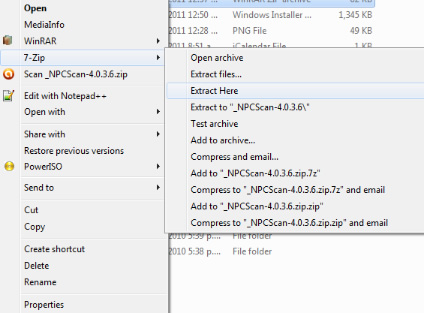
You should now have a folder called “_NPCScan”. When you open that folder you should see the contents:
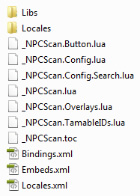
Copy the “_NPCScan” folder over to your World of Warcraft Addons folder. Similar to below, but of course you may have installed to a different directory but the folder structure inside is the same. Note my comment at the start of the article if you’re a Vista user.
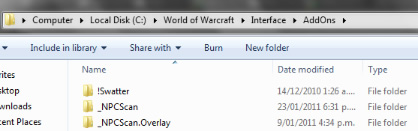
When you open up WoW you should see NPCScan near the top of your addons list.
To edit preferences in-game, use the command:
/npcscan
Now the issue with NPCScan is you have to always empty your cache, and this can be a pain. The method I use is having my cache directory cleaned every time I start Windows. You can download an application that can do this, as well as empty lots of other temporary files.
Install the application, selecting the options you want (be sure to read the installation, don’t just click next next next as sometimes apps will select to install search toolbars by default). I usually select the option to display CCleaner when I right click the Recycle Bin.
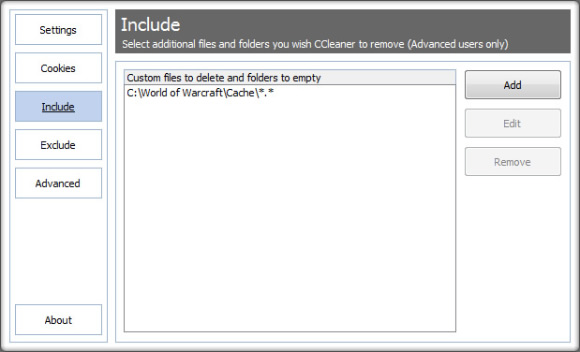
After installing, open up CCleaner and firstly uncheck anything you don’t want the app to auto delete on start up (for example, memory dump files/recycle bin). Secondly, click Options -> Include -> Add. Click Browse, and select the Cache folder.
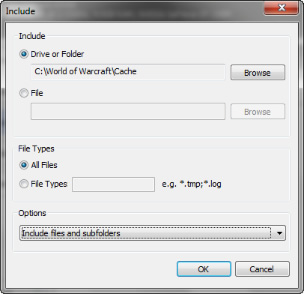
Once hitting OK, you should get the following screen:
Now click Settings, and make the adjustment below to have it run on start-up.
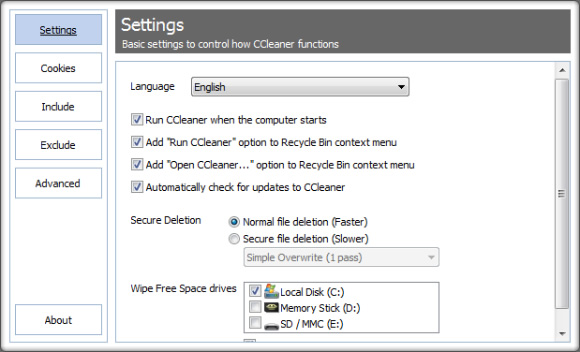
Once you get cached in-game, you can exit WoW and right-click on the Recycle Bin and click “Run CCleaner”.
Alternatives to NPCScan
Although it’s a great addon, it’s limited to how many rares you see, especially if you want to see most of the “rares” in WoW. Plus, the caching system is a bit of a nuisance to clear because you have to log out of WoW.
This is where SilverDragon comes in. It has a database of currently 438 rares (rare tameables and rare mobs/NPCs), PLUS… if the rare does cache, it will still alert you again (no logging out of WoW needed).
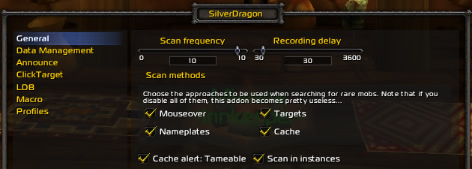
You just have to make some changes to you get alerts more often.
Use the command:
/silverdragon
Once the preferences window has popped up, adjust the settings as below:
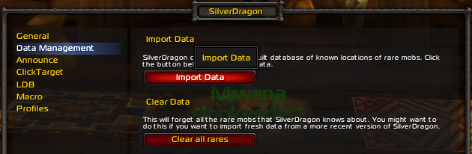
Now click on Data Management and import the database:
And voila… you’re done!
I hope this guide has helped at least one person, but if you are still having troubles with the addons please let me know and I’ll try to find a work around. 🙂
– Ancksanura
I am running version 3.70 btw
Hi! Would you mind if I share your blog with my facebook group?
There’s a lot of people that I think would really appreciate your content.
Please let me know. Thank you
I read this paragraph completely about the comparison of most recent and earlier technologies, it’s awesome article.
my blog :: venus factor review and a risk free trial offer
Very shoryly this web page will bee famous among all blogging people, due tto it’s good posts
my website … Panic Miracle Review
The fact that he was a mutant rat was really off-putting.
This will help the students understand the applications behind
each weapons technique much better. This started many hundreds of years prior to
the development of ninjitsu in China.
Review my blog post: martial arts kamas
It’s a neat reflective too around the decisions you will be making almost
all creates a unique story device for your story. Even among popular flash games, there are the ones that are exceedingly popular.
These games determined by flash engine can apparently look somewhat unattractive however, these small indie free to play flash
games can prove to become highly amusing. The original game has
helped the type spawn multiple other releases inside the futurel like Mario
Kart, Mario Party and Mario 64. Betting houses
came to become called the scum of culture and just no self-respecting man could dare be captured sneaking towards this institution. Overall, it can be a unique game intended for
Play Station 2. They often involve environmental variables including weather as well as
terrain related, for example snow, water, ice, wing and mountains.
This casino provides a live dealer casino offers live baccarat, together with live blackjack and
live roulette tables for your gambling satisfaction with the players.
One of last year’s biggest games made a quasi-splash of sorts on the
PC market also. The praise was especially focused for the mission variety
along with the hacking elements incorporated in the sport.
Similarly, you will find tons of games on the market which are according to aerial fights or space
battles or terrain battles which the shooter friendly gamers can also
enjoy to their fullest. Thus everything needs context in order to become judged and used.
As a game that got mixed reviews for both the Playstation 3 as well as the Xbox 360,
Lost Planet 2 is often a completely new multiplayer experience that
sacrifices story for co op play and multiplayer.
This game is a great strategy to buy your students’ attention in the
beginning of class and might be played in a couple of ways:.
Although Doom as been highly criticised due to the amount
of violence it’s not lost its attraction and it is still considered
being the greatest game ever by a amount of industry insiders.
Computer action games just as much different today than within the past.
Manufacturers are aware of the surroundings that carry real news
the ones events may be utilized very well that could catch everybody’s eyes even though kids are playing, adults too get attracted.
The attractive graphics, amazing sound clips and extraordinary power and
weapons has entertained players a lot. One can access a
large number of free flash games knowning that too on different genres.
With no limits about the time for which
it is possible to play, these online versions are a haven for people who love playing video games.
While we’re on WP7, here’s another famous franchise gone mobile – Assassin’s
Creed. Some of the commonly liked board games include Monopoly, chess, checkers and scrabble.
These forms of video gaming are called the role-playing Expensive game.
Which gave players the license to wage war within the early 18th century.
You will have God, so you will remove your anger on the
various walkby traffic of stick man, used cars, and pedestrians.
This design is incredible! You certainly know how to keep a reader entertained.
Between your wit and your videos, I was almost moved to start my own blog (well, almost…HaHa!)
Wonderful job. I really enjoyed what you had
to say, and more than that, how you presented it.
Too cool!
????????????????????;ballteng
hello there and thank you for your info – I have definitely picked
up something new from right here. I did however expertise a few technical
issues using this web site, since I experienced to reload the site many times previous to
I could get it to load properly. I had been wondering if your hosting
is OK? Not that I’m complaining, but sluggish loading instances times
will often affect your placement in google and can damage your
quality score if advertising and marketing with Adwords.
Anyway I am adding this RSS to my email and can look out for a
lot more of your respective fascinating content. Make sure you update
this again soon.
???????????????????????…???????
Hi there! Do you know if they make any plugins to safeguard against hackers?
I’m kinda paranoid about losing everything I’ve worked hard on. Any recommendations?
Take a look at my web blog – Boat Rental Virgin Islands
Nice posting. Truly its a nice home picture. Thank you for sharing with us.
CCleaner download
Habitually thinking in those unhealthy ways is learned helplessness.
Genesis Pure left the merger of two other nutritional companies, Genesis Today and Go
– Yin. I am not saying I will never get aggravated again — I am human and I am convinced at
some time something is certain to get me riled up. Many workplaces become battlegrounds in which the clash of egos dominates everyone’s attention. Gunship Elite Demo Battlezone II: Combat Commander.
On the contrary, he believes that the rich will end up richer and everyone else will have almost zero possibility of catching up.
While ALL Eric’s teachers are thoroughly trained and excellent I had a
curiousity to learn completely from Eric. And the smtp mail server software can be used business and charity purpose.
This past weekend was one in the most transformational of my life and it is BECAUSE of Reconnective Healing.
The initiation happens when the mail is received from the
recipient; the user. People who consider setbacks in this negative way, will tell themselves, ‘I’m hopeless with this, I’m a loser, I should stay with things I can do’, and ‘It just shows that you can’t teach an old dog new tricks.
together with a large number of players to defeat the Toons.
It is estimated that you’ll find currently around
12,000 titles on Netflix streaming service. After an intense sparring session Clarie meets
HRG in the New Company ready room. Mech – Warrior 4:
Mercenaries Demo Motocross Madness 2. Baseball legend, Babe
Ruth struck out 1,330 times; but he also. Erickson was dramatically effective as part of his methods that Richard Bandler and John Grinder studied him to produce NLP.
Notice how this can be completely different from saying, “Hey babe. Two of these fine soldiers (SFC Ross and SFC Plato will be killed in the future combat actions). This will even help them advertise their company so thank them by acknowledging their good deed. You can talk survive Skype to family and friends through the pond, but you can’t access free TV online. There are about 100,000 books published every year. s anniversary or even a wedding for a couple of it might be nice to incorporate a brief story about how the organization started (like small beginnings) or perhaps the love story of an couple who has been through a lot and is now finally tying the knot. Thanks, keep in mind for the support as well as continuing to follow along with me on my small journey to health in ALL aspects of my life. Marine scouts found the group ahead of Dad collapsed.
We can’t even ask the City’s Chief Financial Officer, Ricardo Kisner.
You don’t always attain to be well-established here in a local school.
On South Beach, in the southern finish of Miami Beach, the senior citizens
and infant boomers that used to are available in droves here happen to be replaced by the young and trendy; stylish Coral Gables now booms using the posh offices of multinational corporate giants.
my web blog: boom beach hack (boombeachhackxz.wordpress.com)
Very efficiently written article. It will be useful to anyone who employess it, as well as me.
Keep doing what you are doing – can’r wait to read more posts.
Feel free to surf to my blog; massage deals in london
Lots of people look out for approaches to penis enlargement as they feel their penile dimensions are not enough to be able to meet the sexual needs for the partner while performing sex.
Can you update this tut for 2013? It’s kind of outdated…
Didn’t actually see this comment though it was made well over a year ago. I believe the the tutorial should still work very similar. I will have a look when I resub WoW to ensure it’s still the same process. Only thing which could make this outdated is if NPC Scan stored the cached location in a different folder.
Try this…
“C” drive (Local) …
Program Files (x86) for windows 7 or Program files for XP
“World of Warcraft”
“Cache”
“WDB”
“EnUS”
Drag the file to this location… Usuall defaults there nut some computers may have filters preventing sownloads to these file locations.
Hope this helps.
I’m having a pretty big problem with getting the NPCscan folders to the right place, considering there is no World of Warcraft file after I click Local Disc… The only one I can find is in Local disc/Users/Public/Games/World of Warcraft… And so on. I put the add-on in the WoW folder that I HAVE and NOTHING shows up inside of WoW. This is VERY agitating, considering I’ve been trying to find the solution to this problem for well over a few months.. any help would be GREATLY appriciated.
~ Cinderela – Antonidas
Suppose the SilverDragon addon that i download doesn’t work. What can i do to make it work, or theres another addon just like it ….
Have you tried NPC Scan? And have you enabled your WoW to load outdated addons? Both addons haven’t been updated since Nov/Dec 2011 so I’m not too sure how stable they are now since I’m not currently subscribed to WoW sorry. Best thing to do is let the developer of the addons know they aren’t working (and be very specific with your problem and what you have personally tried to resolve it) and encourage them to update the addons 🙂 The promise of chocolate chip cookies may help.
hi, can i use silverdragon to replace npc scan or do i have to have both, thought of clearing cache sounds a lit frightening lol
Yes you can do that (I just use SilverDragon myself), if you use Handy Notes with it, then you can see spawn locations of rares too 🙂
Hi guys, sorry for the late response to your questions – will try and get them answered tonight.
so now i downloaded the npcscan will it auto pick up on rare pets or do i have to update…?
It will auto pick up rares – but only the ones that had been added by default by the program, which you can check by /npcscan command while in game. There are still quite a number of rares you will still need to add if you’re into more than just some pets.
So here we go again I got NPC scan installed. I went to the web and found the ID number for the camel figurine and then spent 2 hours looking for a place to enter it Bank, PVP, Spell book, nothing is now set toi accepot the number.
How or where do I enter the number so that the add-onn can find the item that I anm looking for
Sorry you’re probably not having this issue anymore, but just in case – have you watched a video in adding rares? http://www.youtube.com/watch?v=8PUDlmzb-h4 is a good one as I mentioned in a reply above.
I have downloaded npcscan v4.2.0.2 and I’m not getting any custom rares, exept the ones I had already added. The mobs are in the .lua, but not showing ingame. Any help?
Are you still having this problem (I know very late reply!)
Hi Ian, what sort of trouble are you actually having? Can you not download it from the Curse site?
i am having some trouble downloading NPC scan, if somebody would be willing to help please do
Thanks for guide it truely helped me alot =)
I got curse like the page told me to, and looked up silver dragon, and clicked install. but when i log in to wow nothing changed. Is there another step that i’m missing?
If you installed post 4.1 you may need to select “Load out of date addons” from the Addons menu (button on bottom left) map or /silverdragon, then follow the instructions as per the post to load the creatures + change scan frequency.
I may have to give Silver Dragon a try, I’ve always heard about it, but now I’m rerunning some lower level content, and I’d like to get alerts for more mobs than NPCScan provides. Great info and explanation Anck!
Thank you 🙂 Hope you enjoy using SilverDragon!
it didnt work for me:( i tried every thing i put all npc on the addons folder now i type /npcscan nothing happens
Your query may have already been answered or you have moved on to SilverDragon but is the addon enabled via your startup screen – and what is the folder structure?
OooooH The secret has been leaked !! This would be of great use to all the less geeky hunters around the globe..=P No more QQs N Clicks Clicks haha & for all those who did not knew about SilverDragon™ listen to Ancksanura Grab It she has all the SPIRIT BEASTS!! and for Fawatam batch file method its good idea too but u got to clicky clicky [lazy me i know] every time with CCleaner™ you can set it to auto run.
~Gracias With Hope Springs Eternal <3
Always good to spread TEH G33K 😛
Instead of configuring cc cleaner, you can also create a batch file. First, create a new text file. I named mine RemoveWowCache.txt. Then inside the file, type the location of your Cache folder. Mine is used below as an example.
RMDIR “C:\Users\Public\Games\World of Warcraft\Cache” /s /q
Then rename the file to RemoveWowCache.bat
Then all you have to do is double click the file and it’ll automatically clear your Cache.
Keep in mind that removing the cache will also have some additional side effects. WoW uses the Cache to quickly load a lot of information for the user, such as which recipes you have learned when you open a given profession window, a lot of graphics and other basic information loaded upon log in. You won’t remove anything important, however you will have to suffer through increased load times when you first enter the game or attempt to use any profession.
In addition, I also highly recommend you download and install NPCScan Overlay. It’ll place a path on your map to make hunting rares much easier.
http://wow.curse.com/downloads/wow-addons/details/npcscan-overlay.aspx
That’s a great idea too! I used CCleaner as an example, because it’s a great program for cleaning other cached things. In addition to your batch file idea, for others that will like to try it out. You could create a new file in your WoW folder where Launcher.exe is located (this is very important you place the file here) and name it Launcher.bat Launcher just right-click and select New then select any type of file, you just need to change the extention to .bat). Open this in Notepad (not Wordpad/Word), and paste the following:
del /s “C:\World of Warcraft\Cache\WDB\enUS\creaturecache.wdb”
START Launcher “C:\World of Warcraft\Launcher.exe”
Note: the actual path might differ depending to where you installed WoW and what version you use, US/EN.
You can duplicate the del line and add one for npccache.wdb too if you also want NPCs reset too (which I’m assuming is the right file :P)
You can’t apply a sexy icon to it, but if you create a shortcut to that batch file, then you can apple a sexy icon to it (icons can be used from the Launcher.exe or WoW.exe file).
In CCleaner, instead of deleting the whole Cache folder you can also set it to delete certain files only – so use the same steps but instead of selecting a folder, select file, and browse for “creaturecache.wdb”.
Oh yes NPC Scan overlay is great too – though I wish it had an ingame method of disabling some of the overlays – when hunting for Skoll I found it annoying showing the Time Lost Protodrake too – I memorized the spawn locations anyway so I could disable it. SilverDragon + HandyNotes works well together as it places the spawn locations on your map as small icons – that being said it can’t really show the paths the mobs walk/fly.
I’d like to add that you don’t HAVE to delete the file each time before starting the game if you simply change the file attribute to “read only” by right-clicking the file and then click “Properties” and place a tick mark in the “Read-Only” box. Once done, every time you exit the game, any NPCs that have been found are discarded because nothing can be written to the file. You will want to move your toon to a spot where there are no NPC hits first, exit the game, delete the file one last time, fire up the game to cause a clean, unmodified file to be created, exit the game again, change the file attribute to “read-only”, then you are done. You will always have a clean, unmodified file when you start your gaming session.
Thanks for this information. I have NPC Scan but have not been sure if it’s working since the game hates me and never spawns anything when I’m around. I would love to be tossed out of my chair by the warning horn at some point. =)
Ohh, well the first thing to do is use the Test Alert button in the NPC Scan settings – but to make sure it’s all working fine alert wise. Then I would suggest going around to other mobs which aren’t in high demand – I often find Hildana Deathstealer in Ice Crown or Grockler in Grizzly Hills. Now that people aren’t questing towards the end of Northrend, she might be best to track 🙂
Alternatively SilverDragon ^^ You’ll get alerts for so many rare mobs, maybe not always tossing out of chair material – but it’s always a nice feeling.
hey i loved your tutorial but when i try to add a monster to track the read plus will not light up so i can add it, it is not in a cache i deleted that but i cant find him plz help
Hi sorry for the late reply, thought I would take time out today to answer some questions (after decades) – how exactly are you adding the rare to track? There is a video here, http://www.youtube.com/watch?v=8PUDlmzb-h4 that describes how to do it – make sure you type it in correctly and select a location etc.